See
https://www.ar-tools.com/doc/
for information on CVE, and how PILAR uses them.
To associate CVE vulnerabilities to assets, assets may have Assets / CPE associated to them.
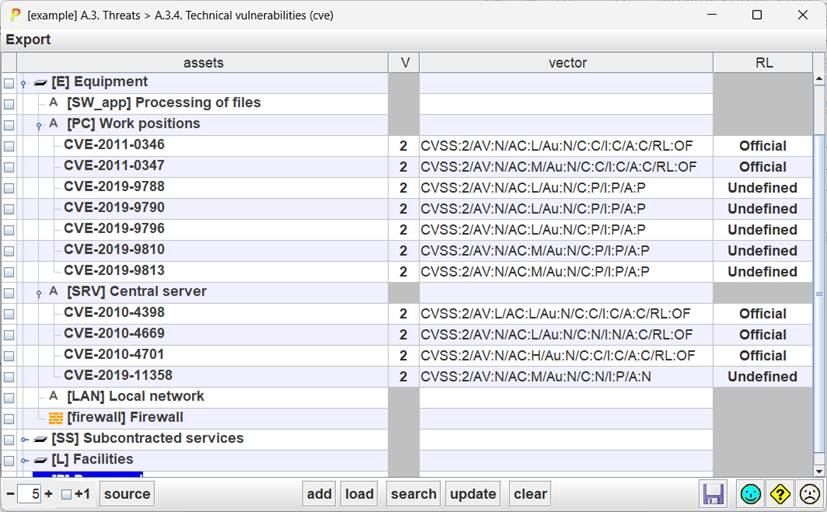
Table
|
selection |
Click on checkboxes to check / uncheck. SHIFT-click to check a range. Click on column header to clear current selection. Selection controls to which rows apply buttons ADD and SEARCH. |
|
assets |
A tree with the assets, and their associated CVE items. |
|
Version |
CVSS version; usually 2 or 3 |
|
vector |
CVSS summary |
|
RL |
Remediation level (see CVSS) |
Bottom toolbar
|
|
Spinner to control the expansion of the assets tree. |
|
+1 |
Adjust the effect of the spinner. If +1 is checked, PILAR shows the vulnerabilities CVE associated to an asset. |
|
add |
— Select one asset on left column. — Click ADD to introduce your vulnerability manually. |
|
load |
— Select one or more assets on the left column — click LOAD to associate a CVE read from an external file in XML or json format, according to NIST standard formats |
|
search |
— Select one or more assets on left column. — Click SEARCH PILAR loads vulnerabilities from the vulnerability database. To be precise, PILAR reads a file as those defined by the CVE project site for vulnerability distribution. The CPE names associated to the asset are used to discover matching vulnerabilities. You may use either XML or JSON standard formats. |
|
update |
Like SEARCH, but now the data from the database are updated into PILAR. |
|
clear |
— Select assets in the left column — Click CLEAR PILAR removes their associated vulnerabilities. Or — Select vulnerabilities in column — Click CLEAR PILAR removes the selected vulnerabilities from the corresponding assets. |
|
|
Saves current project either in a file, or in database (according to its source). |


You may change these values by editing the vulnerability (double-click on the CVE name). You may edit CVSS version 3 parameters.
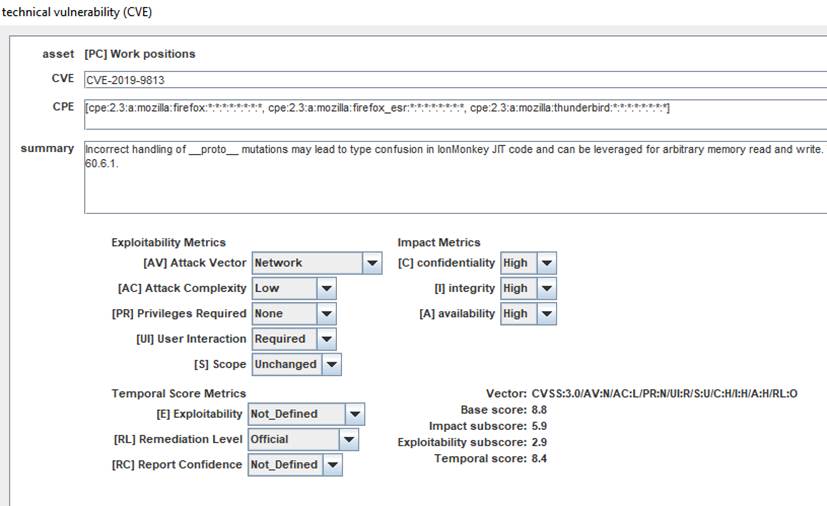
For backward compatibility, PILAR also supports CVSS version 2.
To enter a vulnerability manually
§ select one or more assets
§ click on ADD
§ edit the data
To load a vulnerability for one
or more assets
§ select one or more assets
§ click on LOAD
§ choose XML or JSON file
To find vulnerabilities that
apply to an asset
§ select one or more assets
§ click on SEARCH
§ choose the XML or JSON file data
To update the vulnerabilities
associated with an asset
§ select one or more assets
§ click on UPDATE
§ choose the XML or JSON file data
To eliminate vulnerabilities
associated with an asset
§ select one or more assets
§ click CLEAR
To edit the parameters
characterizing a vulnerability associated with an asset
§ double-click the vulnerability
§ enter data in the edit screen