The cells collect the maturity of each safeguard in each project phase.
The value is either a maturity level L0 – L5, or n.a. (not applies), or empty. For mathematical purposes, “n.a.” is not taken into account.
If a cell is empty, PILAR will reuse the level in the previous phase or in the next security domain (See “Options / Security domains and project phases”. If after that search the cell is still empty, PILAR uses the value specified in “Risk treatment”.
Maturity levels are assigned to single safeguards, black text. For groups of safeguards, PILAR shows the range (min-max) ignoring cells that do not apply (n.a.). The aggregation in ranges propagates upwards the tree up to the top level.
|
colour code |
|
|
red characters |
when the value is calculated from others |
|
black on white |
when the value is explicit |
|
black on yellow |
when the value comes from a security domain below |
To change a value in a cell, you may
— right-click and choose
— select a maturity in the maturity combos in the bottom tool bar
— select one or more cells (rows and columns), and use EDIT menu to copy & paste
On the valuation cells, you may move maturity value from one phase, security domain, or project to another:
copy tree
PILAR copies the maturity of the cells in the current row, and in the corresponding sub-tree, to be pasted later
paste tree
PILAR pastes the values copied before
Note that the values can go from one phase to another phase, from one domain to another, and even from one project to another project; but they always apply to the same sub-tree.
Please, note as well that copy-paste only works within the application. You may not copy in PILAR and paste in another application.
XOR
safeguards
When a tree branch is labelled as XOR, you may choose which one of its children is the one to take into account.
right-click > select
In the example below, for the I&A mechanism, we have selected
· passwords in phase ‘current’
· token + password in phase ‘target’
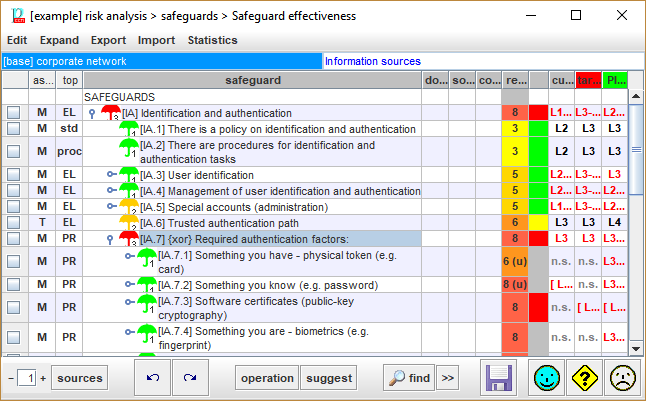
The other children are marked as n.s. (not selected).