|
Quick start |
|
Go to layers’ menu (above) and click STANDARD LAYERS. Select a layer or a group and right click on NEW ASSET. Click OK to finish asset identification. |
This screen is used to capture the assets and their unique characteristics.
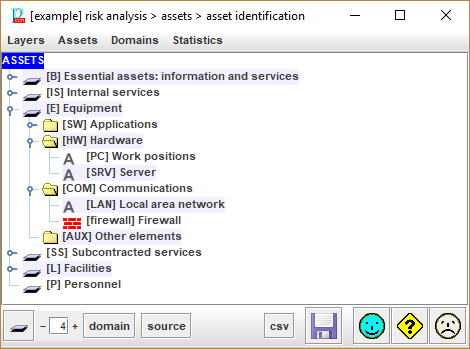
There are several kinds of information to input:
layers
Assets are organized in layers.
Layers have no impact on risk analysis: it is just a way of organizing assets for a better understanding and communication.
groups of assets
It is a convenient way or organising assets within a layer.
You may think of it as the organization of assets (files) into groups (directories).
Groups have no impact on risk analysis.
assets
At last, these are essential for risk analysis.
To move one layer, group or asset
select with the mouse, then drag and drop onto the desired position
To
move one or more assets, you may drag & drop, or select and then use
arrows:
· SHIFT + UP_ARROW: to move up, before the previous one
- SHIFT + DOWN_ARROW: to move down, after the next one
- SHIFT + LEFT_ARROW: to move left, brother(s) of the current father
- SHIFT + RIGHT_ARROW: to move right, son(s) of the current elder brother
Double click to edit. See “Edit one asset”.
Right click to operate on assets. See “Asset operations”.
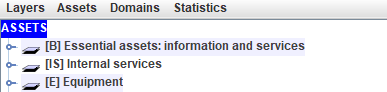
· To edit security domains. See “Security domains”.
Bottom toolbar

|
|
Click to collapse assets tree. |
|
|
To select the level of expansion (tree depth). |
|
domain |
Click and select a security domain. PILAR will select the assets in that domain. |
|
source |
Click and select a source of information. PILAR will select the assets associated to that source. |
|
csv |
Export to a file using format CSV (comma-separated values). |
|
|
Saves current project either in a file, or in database (according to its source). |


